
You can enter a coupon code in your shopping cart or during checkout. Quantity discounts are applied automatically when your order qualifies.
Note: Screenshots are for illustrative purposes only and may not reflect current prices or discounts.
TABLE OF CONTENTS
- Applying a coupon code
- Quantity discounts
- How can I tell if my discount was applied?
- What if my coupon code isn't working?
Applying a coupon code
Option 1: In your shopping cart
- Open your shopping cart.
- Enter your coupon code in the coupon field.
- Click Apply.
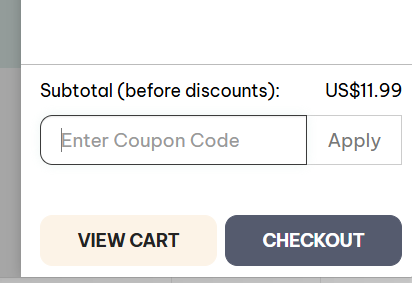
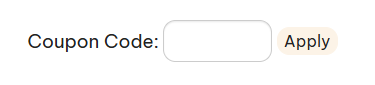
You can do this from either the slide-out shopping cart or the full shopping cart page.
Slide-out shopping cart:
Full shopping cart page:
Option 2: During checkout
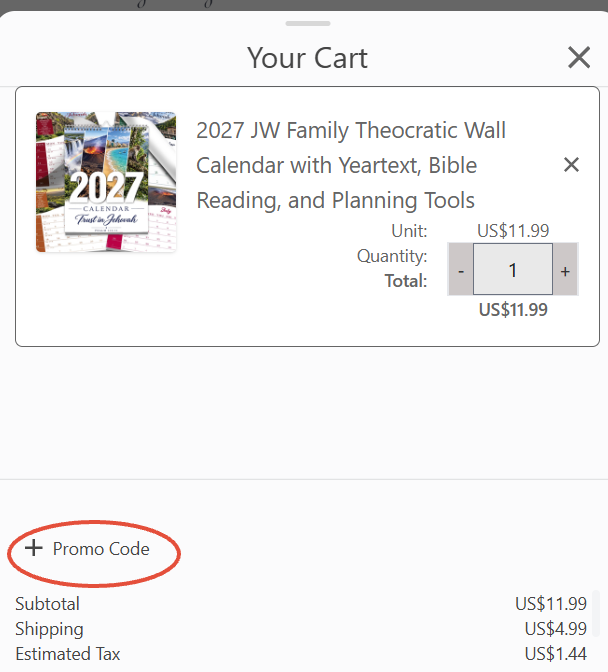
You can also enter your coupon code during checkout. The location of the coupon field depends on your screen size.
On a mobile device:
- Tap the order total at the top of the checkout page to expand your order details.
- Tap + Promo code.
- Enter your coupon code and tap Apply.
On a computer:
Look for your order summary on the right side of the checkout page. Click + Promo code, enter your code, and click Apply.
If you're using a smaller browser window, your checkout may look like the mobile version described above.
Quantity discounts
Some products offer discounts when you purchase a certain quantity.
You don't need a coupon code for these discounts! Simply add the required quantity to your cart, and the discount will be calculated automatically.
How can I tell if my discount was applied?
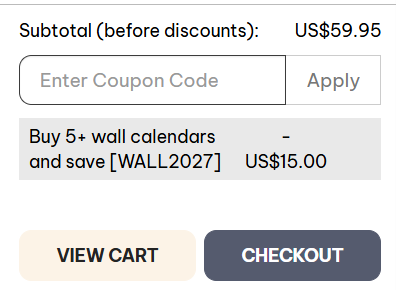
Once a discount has been applied, you'll see it listed at the bottom of your shopping cart, along with the amount saved.
For discounts that apply to specific products, the product code will also be displayed.
Example of a quantity discount in the shopping cart:
What if my coupon code isn't working?
If a coupon code can't be applied, you'll see an error message.
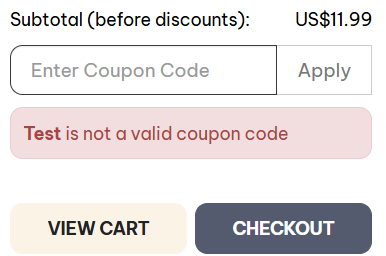
Coupon not working?
There are several reasons a coupon code might not apply to your order. Read our article Why doesn't my coupon work? to learn more.